Client migration · about 10 minutes
Upgrade to the New API
We've upgraded the engine that manages your account. The one thing it needs from you is a fresh connection: your exchange connection has to be re-created once, and this page walks you through it step by step. It takes about 10 minutes, and you can't break anything by going slowly. If you get stuck at any point, email wecare@cryptoxlnc.com and a real human helps you through it.
Create a new API key on your exchange
An API key is a password-like code that lets our system trade for you, and nothing else. You'll make one in your exchange account, following the pictures below.
Paste it into the secure form on this page
The form lives right here, so there's no link to mistype and nowhere else your key ever needs to go.
Watch for small test trades within 48 hours
Tiny ~$10 trades appear as we connect you. They're expected: your signal that the upgrade worked.
The tutorial video
Prefer reading? Everything in the video is written out below, step by step, with copy buttons for the parts you paste. Use whichever suits you; they cover the same switch.
Read this before you start — it's what keeps you safe
The key you are about to create can do exactly two things: see your account and trade inside it. It can never deposit, never withdraw, and never move funds anywhere. That is not a policy; it is how the key itself is built. You will see it with your own eyes in a moment, when you leave the deposit and withdrawal boxes unticked.
We will never ask you to move funds, send crypto, share your password or 2FA codes, or log into a wallet. Anyone who asks for any of that is not us. How to verify any message that claims to be from us is explained at the bottom of this page.
Choose your exchange
We work with spot accounts on these three exchanges only. If your account is elsewhere, email wecare@cryptoxlnc.com before doing anything.
Kraken SPOT ACCOUNT · 7 STEPS
-
Log in to Kraken. Click your profile icon (top right), then Settings.
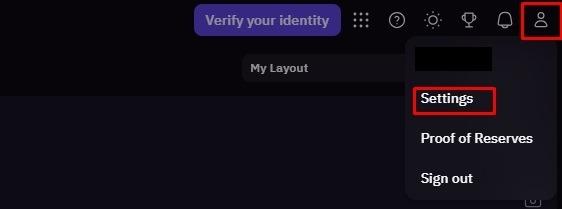
The profile icon sits in the top-right corner; Settings is in the menu that opens. -
Open the API tab. Under Spot trading API, click Create API key.
We work with spot only; don't use the Futures section.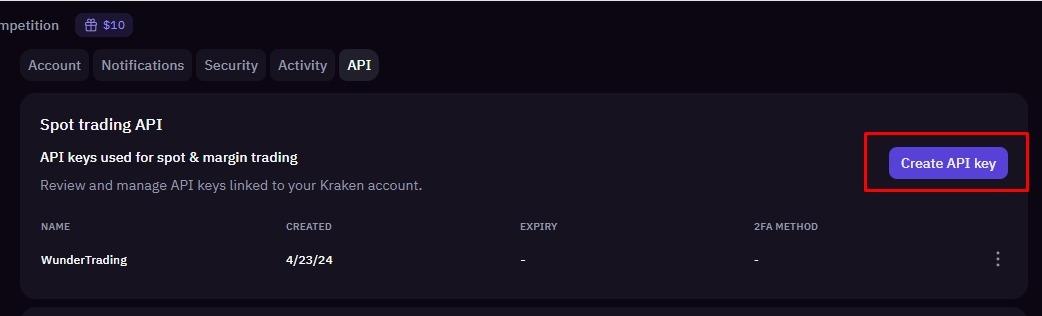
The API tab, with Create API key on the right of the Spot trading API section. -
Name the key so it is clearly distinct from your old one; we suggest the name below. Your old key stays exactly where it is; the different name means the two are never confused.
XLNC-NEW-2026Then set the permissions exactly like this, each one explained in plain language:
- Funds permissions → Query only. Query means: lets us see balances and orders, nothing more.
- Deposit, Withdraw, and Earn: leave all three unticked. This is the safety guarantee. Never give deposit or withdrawal access to any API key, ours or anyone else's, ever.
- Orders and trades → all four ticked: Query open orders & trades, Query closed orders & trades, Create & modify orders, Cancel & close orders. These let us place and manage trades inside your account.
- Data → nothing. We don't need ledger exports, so the key doesn't get them.
- WebSocket interface → On. A faster live connection for real-time trading.
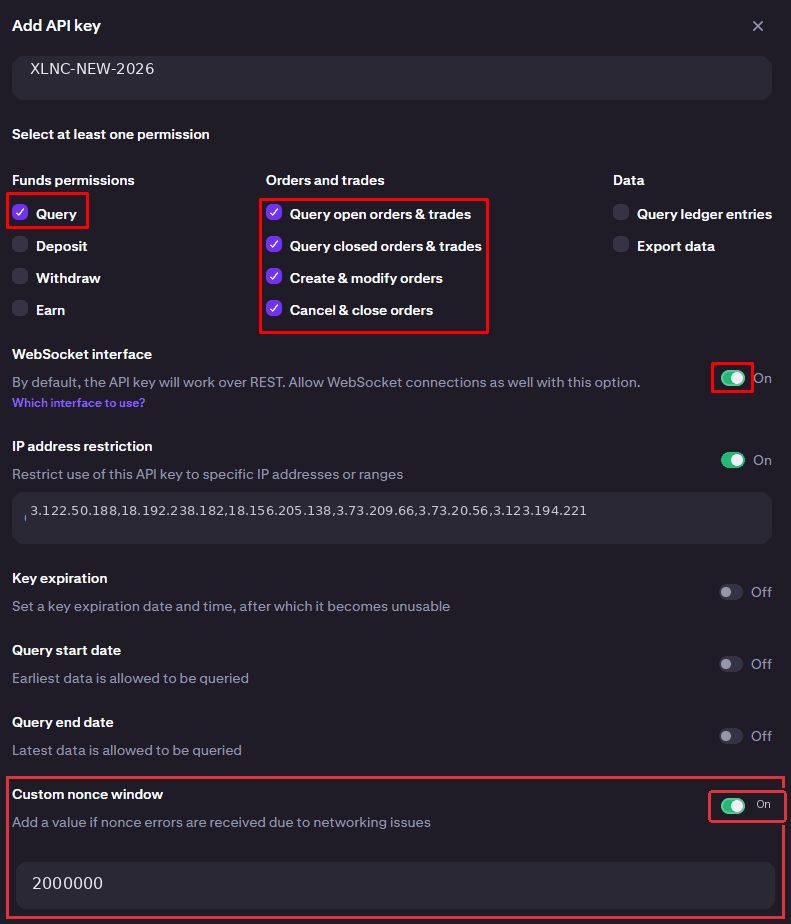
Your dialog should match this exactly, including the unticked Deposit and Withdraw boxes. -
Turn IP address restriction On, then paste this exact list into the field:
What this means: your key only works from our servers, so a stolen key is useless to anyone else.3.122.50.188,18.192.238.182,18.156.205.138,3.73.209.66,3.73.20.56,3.123.194.221If the copy button doesn't work on your browser, tap the box once; it selects the whole list for you.
-
Turn Custom nonce window On and enter this value (the screenshot in step 3 shows it On with the value filled in):
What this means: a timing tolerance that prevents harmless connection errors.2000000 -
Click Generate key. Kraken shows your API Key and API Secret.
-
Copy both into the form below on this page. Then you can close the Kraken API window.
That's the whole Kraken setup. The form is one scroll away.
Go to the formBybit UNIFIED TRADING · 6 STEPS
-
Log in to Bybit. Hover your profile icon (top right), then select API from the menu.
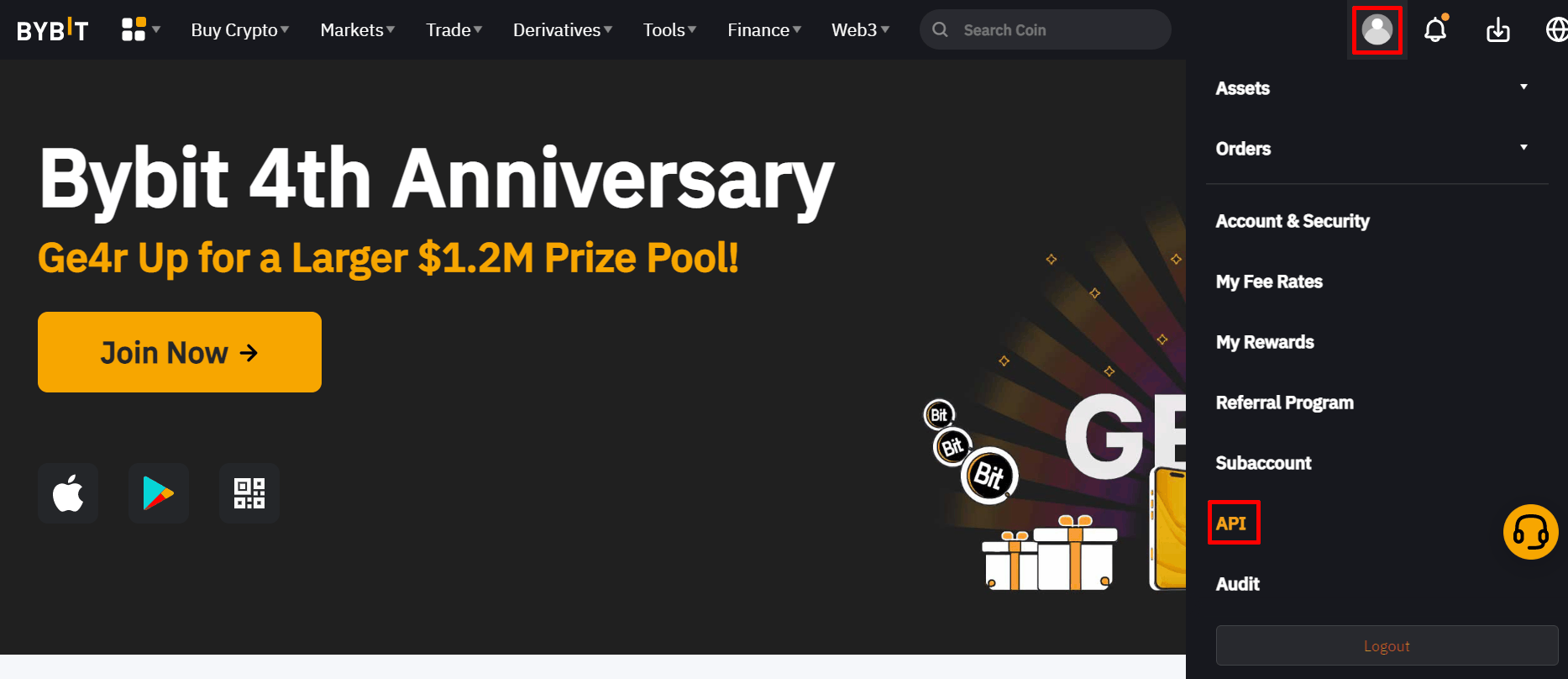
Hover the profile icon; API is near the bottom of the menu that opens. -
Click Create New Key.
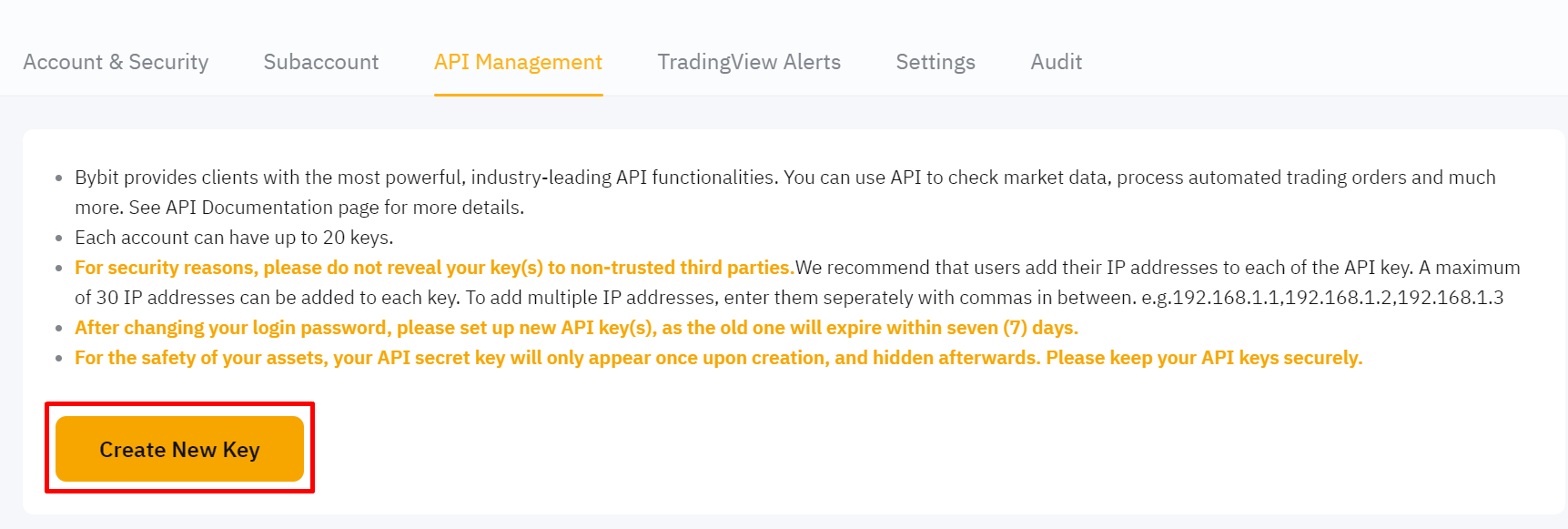
The Create New Key button on the API Management page. -
Choose Connect to Third-Party Applications and select WunderTrading from the list.
What this means: a Third-Party Application is a pre-vetted connection Bybit itself manages. WunderTrading is the institutional execution layer our system connects through; selecting it is correct.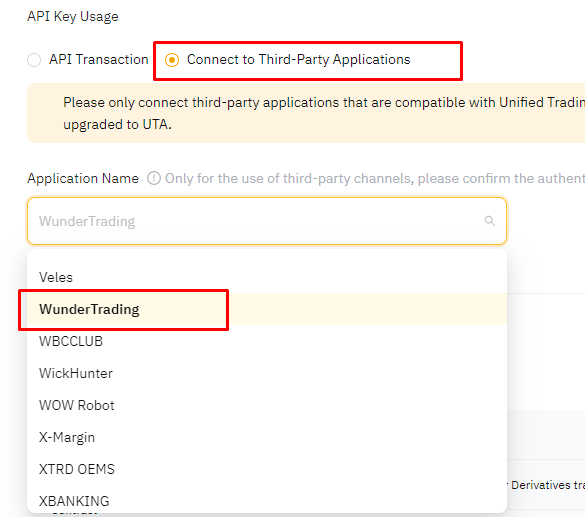
Connect to Third-Party Applications, then WunderTrading in the application list. -
Set API Key Permissions to Read-Write and enable Unified Trading (the trading boxes Bybit pre-selects with it are correct). Then press Submit.
- Read-Write + Unified Trading. Unified Trading is the account type we trade on; Read-Write lets us place and manage trades inside it. Keep the pre-selected trading boxes as they are.
- Assets / Wallet / transfer permissions: leave unticked. The key must never be able to move funds. Never give deposit or withdrawal access to any API key, ours or anyone else's, ever.
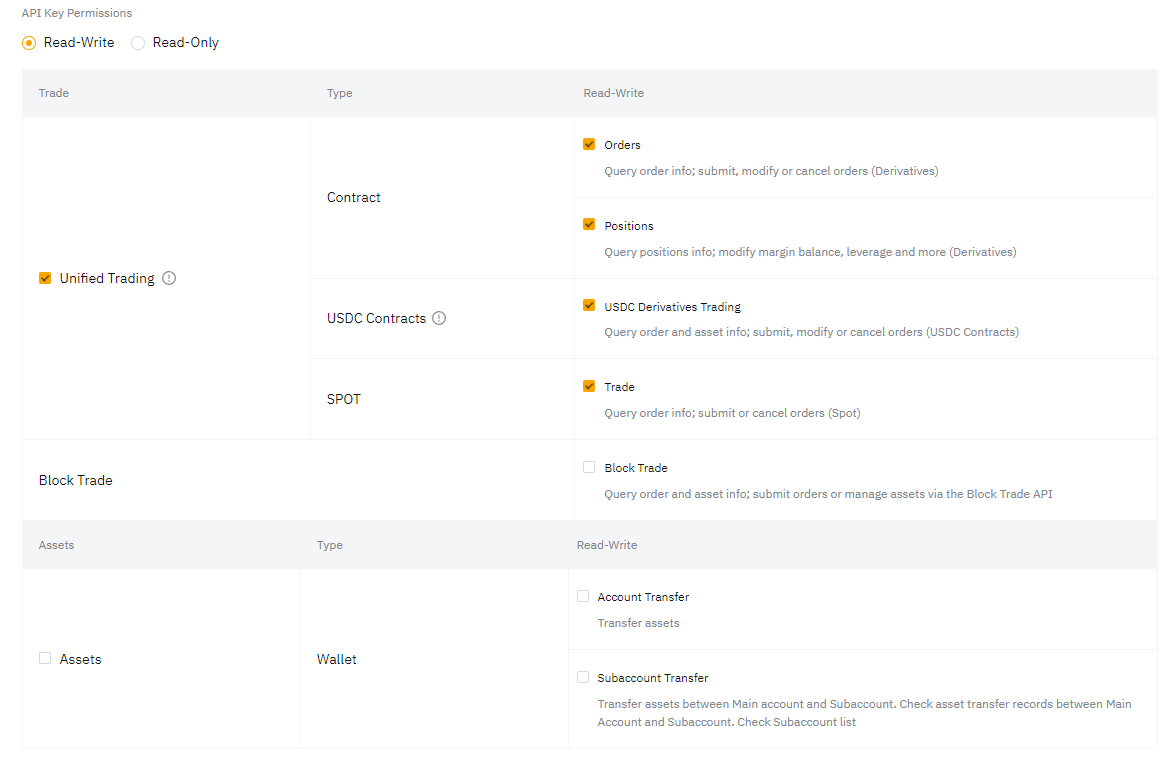
Read-Write, Unified Trading on, and the Assets / Wallet boxes left empty. -
Bybit shows your API Key and API Secret. The secret appears only once: copy it now.
-
Paste both into the form below on this page. Then close the Bybit API window.
That's the whole Bybit setup. The form is one scroll away.
Go to the formCoinbase ADVANCED TRADE · 5 STEPS
-
Log in to Coinbase. Click your profile icon (top right), then My preferences.
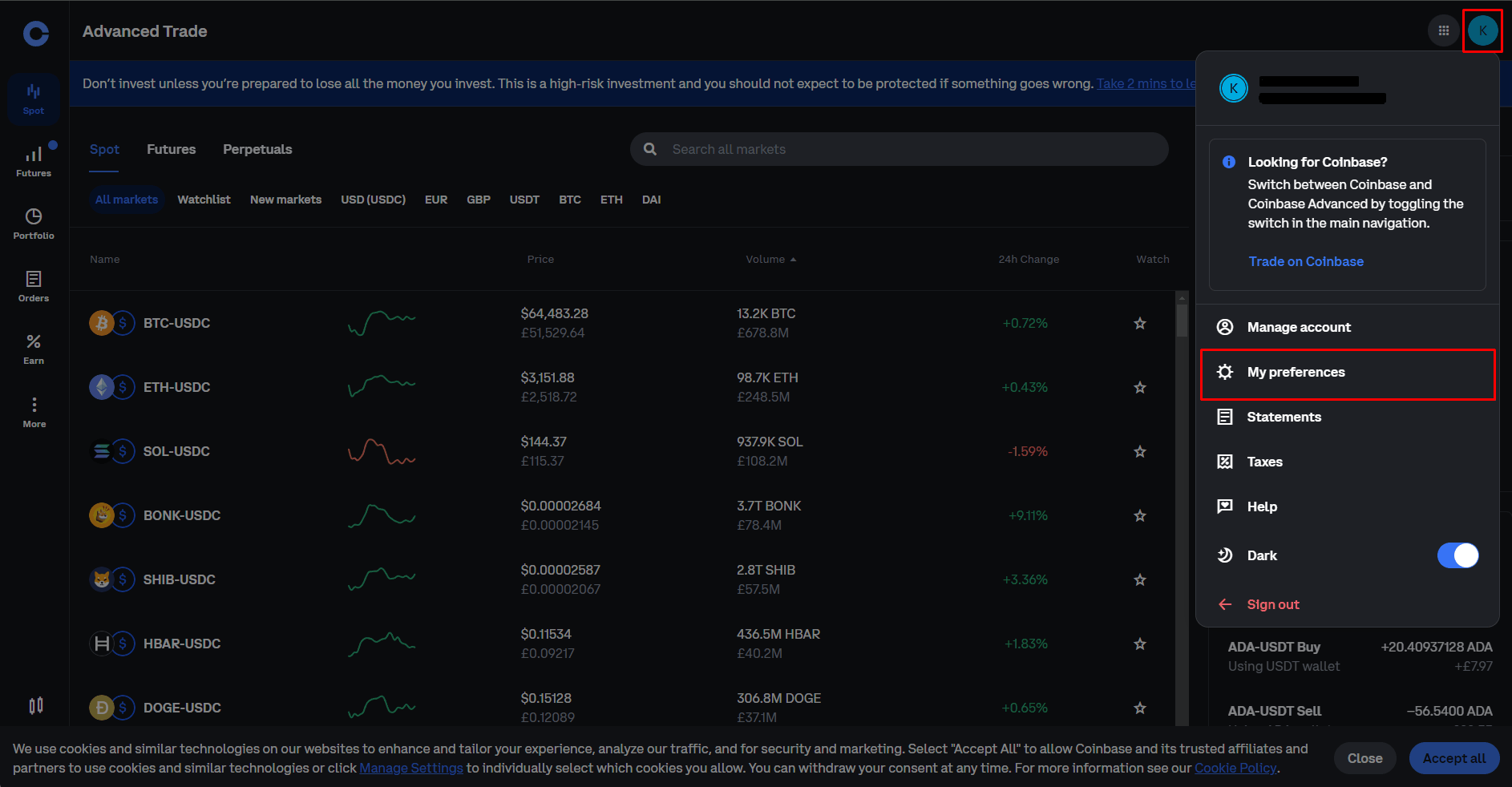
The profile icon opens the account menu; My preferences is in the list. -
Open the API tab.
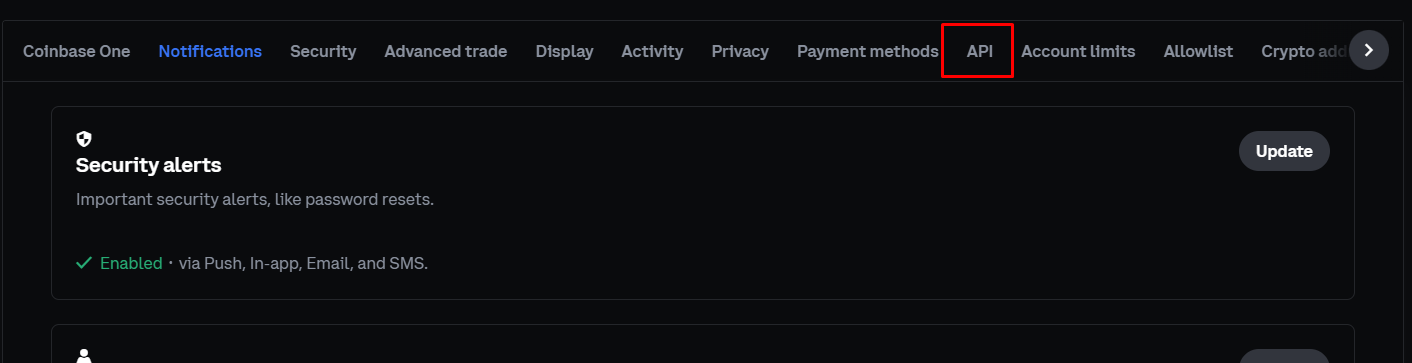
The API tab in the preferences row. Then click Create API key.
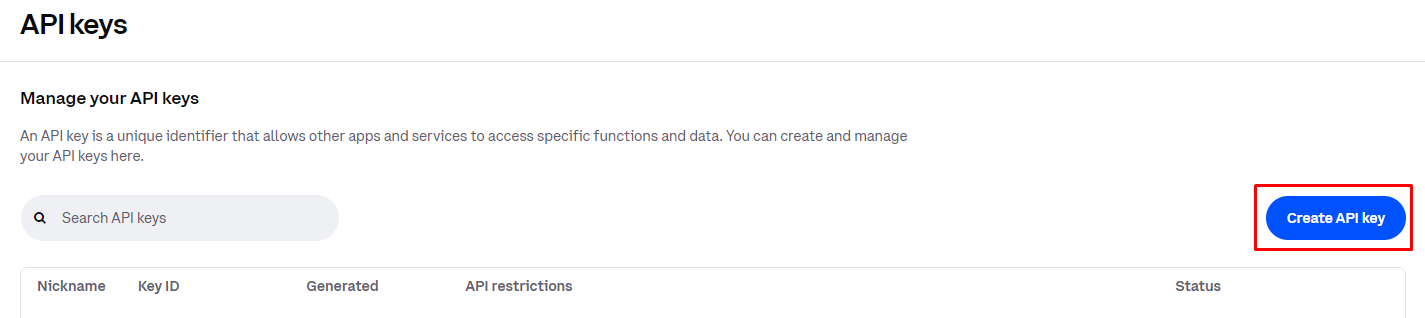
Create API key, on the right of the API keys page. -
In the dialog, fill in three things:
- API key nickname: something clearly distinct from your old key. We suggest the name below; the old key stays where it is, and the different name means the two are never confused.
XLNC-NEW-2026- IP whitelist: paste the exact list below. What this means: your key only works from our servers, so a stolen key is useless to anyone else.
18.153.178.202,18.156.205.138,3.65.142.177,3.123.194.221,3.69.11.251,3.73.20.56,3.64.161.58If the copy button doesn't work on your browser, tap the box once; it selects the whole list for you.
- API-specific restrictions (Advanced Trade / Portfolio: Default): View (already on) and tick Trade. View lets us see balances and orders, nothing more; Trade lets us place and manage trades inside your account.
- Transfer: leave unticked. The key must never be able to move funds. Never give deposit or withdrawal access to any API key, ours or anyone else's, ever.
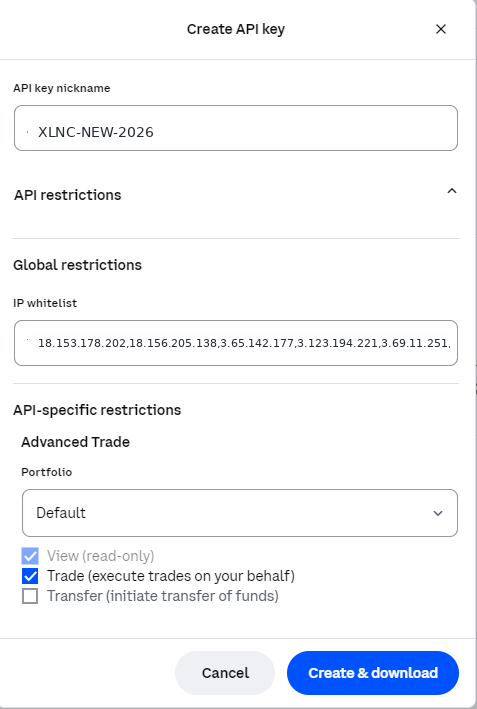
Your dialog should match this: Trade ticked, Transfer left empty. -
Click Create & download. Coinbase shows your API Key and API Secret.
-
Paste both into the form below on this page. Then close the Coinbase API window.
That's the whole Coinbase setup. The form is one scroll away.
Go to the formSubmit your new key
This is the final step, and it happens right here: you never leave this page, so there is no URL to mistype and nowhere else your key should ever go.
Form not loading? Open it directly at app.cryptoxlnc.com/widget/form/WUTdOKwhXqrdc9jH2Z2w
Once you've submitted, you can close the API page on your exchange. You're done.
How to verify it's really us
If we can't reach you by email, we may contact you by Telegram, WhatsApp, text, or phone to make sure you don't lose service. That's normal during this migration. But you should still verify anything that claims to be from us. Here's how.
Verify in one of two ways, always through a channel you open yourself
- Email wecare@cryptoxlnc.com and ask "was this really you?"
- Ask in the XLNC 3.33 Home Telegram group.
- Never verify through the channel the message itself arrived on: a scammer controls that channel.
We will never ask you to…
- Move funds, or send crypto to any address
- Share your API secret anywhere except the form on this page
- Share passwords or 2FA codes
- Log into a wallet
- Install software
Deadline pressure is exactly what scammers imitate. If anything feels rushed or off, stop and verify first. The 10 minutes this takes is never so urgent that verification can't come first. This is our standing security protocol; read the full version at The Crypto Security Protocol.
What changes for larger accounts
Until now, Sim and the XLNC team have carried the full cost of the infrastructure and operations behind this system personally. With the new setup it becomes shared, so it can serve everyone durably:
- Concierge clients $100k+$100/month or $1,000/year
- Platinum clients $500k+$200/month or $2,000/year
- Self-serve clients already with us under $100kFree
- New Standard accounts under $100k$50/month or $500/year
Those already with us on Standard ride for free; everyone joining now carries a share.
If you're Concierge or Platinum, your booked meeting walks through this personally (and we'd love to see your face), but you're welcome to complete the API switch right here yourself, meeting or not.
Thank you for understanding and for supporting this journey: this is what lets us build for everybody, for the long term.
Ready? Everything you need, including the payment buttons, is on the Sharing the Infrastructure page.
Questions, answered plainly
Is it safe to paste my API key into this form?
Yes. This page and form belong to Crypto XLNC, and the key you paste can only view and trade. It is encrypted the moment you submit it, and once your connection is activated the submitted copy is permanently deleted; it is not stored anywhere. Never share it anywhere else.
Will the switch interrupt my trading?
No. The old system works through the end of September 10; create and submit the new key any time before September 11 and service continues seamlessly.
What about my old API key?
Leave it exactly where it is. Your new key has a clearly different name, so the two are never confused; the old one simply stops being used when the old system retires.
Do I need to add IP addresses on Bybit?
No. Choosing WunderTrading as the third-party app handles that for you. Kraken and Coinbase need the IP lists shown in their steps.
I trade futures, or my exchange isn't listed.
We work exclusively with spot accounts on Kraken, Bybit, and Coinbase. Email wecare@cryptoxlnc.com.
The screens look slightly different on my exchange.
Exchanges update their designs; the setting names stay the same. Follow the names, and email us a screenshot if unsure.
What are the small $10 trades I'm seeing?
Connection tests: see "Within 48 hours you'll see small test trades" above. They're expected, tiny, and your signal that the upgrade succeeded.
I need help.
wecare@cryptoxlnc.com and a human replies. Include your exchange name and a screenshot of where you're stuck.
Stuck anywhere at all? wecare@cryptoxlnc.com and a real human helps you through it.